
Downloads
Templates, marketing images and design files to help you design, personalise and showcase your Atkins products with ease.
Album Templates - Coated & Uncoated
For Coated and Uncoated Covers, choose between two template options, either Photoshop or Canva.
They include separate templates for the front cover & spine, as your artwork is applied to each area individually. You can also use these for slipcase designs.
If you’d like your artwork to continue across the front cover, spine & back cover, see the Full Photo Cover options below. More spreads make your album thicker, which means a wider spine. You’ll need to choose a template that matches your album’s number of spreads so your artwork lines up correctly.
Canva Templates
Our Canva Cover Templates can be opened in your own Canva account, customised and exported as final print-ready PDF artwork.
Photoshop (PSD) Templates
Download our PSD Album Templates and open in Adobe Photoshop. You’ll find instruction within the file on how to prepare and export your final artwork.
These are our preferred ways to receive artwork, but we’re also happy to work with files created in other design programs. Please get in contact to discuss your requirements.
Canva Cover Templates
Canva Spine Templates
Album Templates -Full Photo Covers
Download the exact Full Photo Cover template for your album using our custom template builder below.
Simply select your paper type, album size and number of spreads to instantly download a PNG template with the correct dimensions for your front cover, spine and back cover, including bleed.
To use these templates, either open your downloaded PNG into Photoshop, or upload it to Canva by following the instructions below.
Then you’re ready to start designing!
Cover Template Guide
Create a design with a custom size, set the units to mm, and enter the width and height below. Then upload the PNG and drag it onto the page.
Digital Swatches
Downloadable JPG files of our cover materials and cover details to add to your website, client PDFs and album guides.
Give your clients an easy, polished way to explore and select their album cover options.
Cover Detail Studios
Brand new to Atkins in 2026!
We’ve made a very simple little tool that allows you to try on all kinds of different colour ways and Detail Options.
You can just download the file with the cover materials you’re interested in, open it in Photoshop and scroll through all the heavenly options.
Kate Atkins developed this when she was doing promotion videos for the new album drop and loved it so much she’s made it public.
Let us know what you think!
NEW Atkins Album Designs
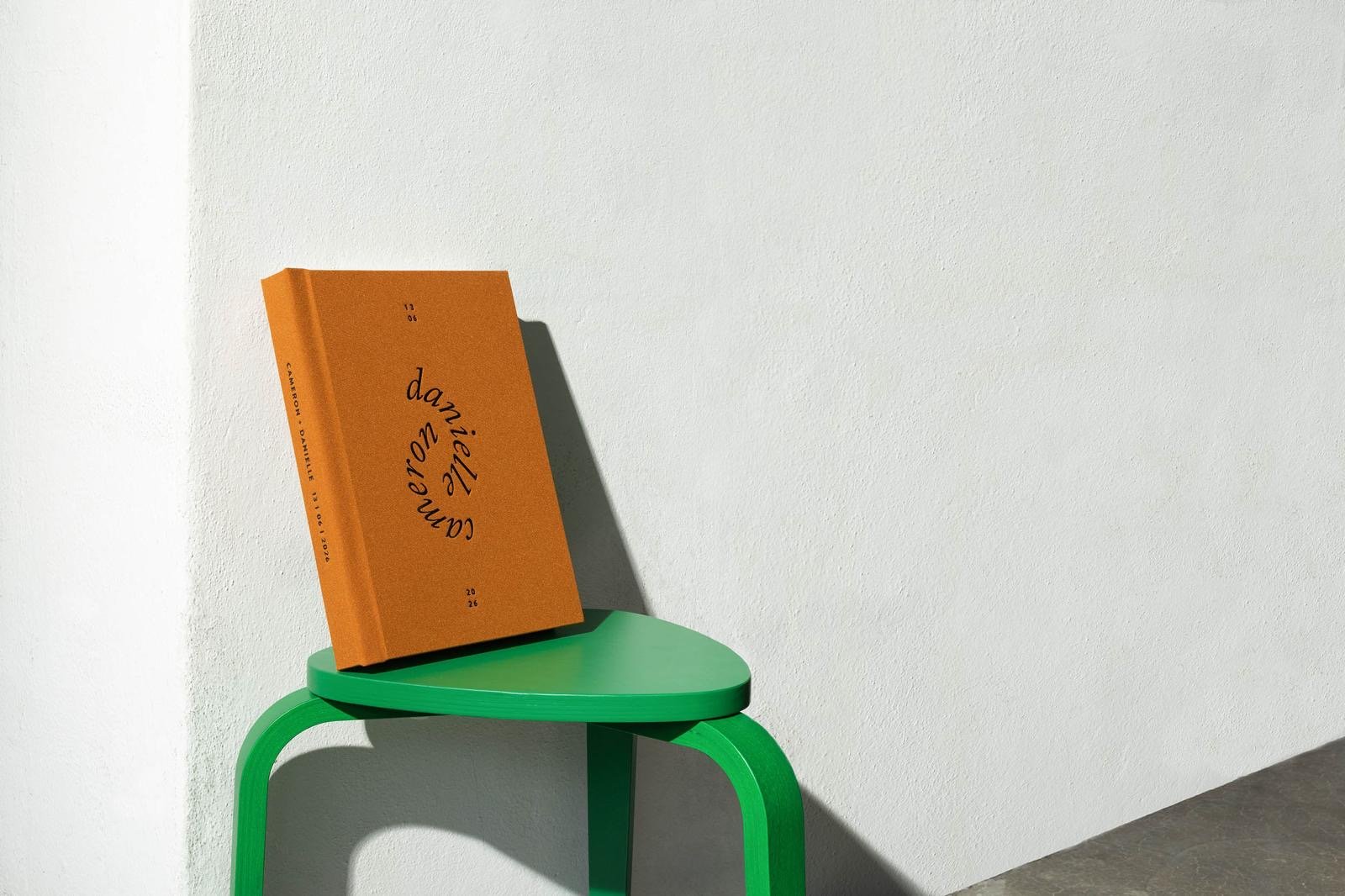
Download JPGs of our Atkins designed album covers to feature on your website, album guide or client-facing marketing.
The images in these designs have been replaced with Royalty Free images (no AI) and can be used without credit.
Marketing Images
Don’t be rude - if you don’t use us for framing, then don’t use our framing marketing images, etc.
You don’t have to tag or credit us. We want you to look good baby!
Drop the brightness of your whites and the blackness of your blacks in your images to make it look more realistic.
Have fun! We love you!
.
Packaging Templates
Design Atkins products with ease using our templates.
We’re always here to help, so please reach out if you get stuck.
Legacy Resources
Previous cover designs and resources that are still available, but no longer part of the current range.